

How to Keep Emails From Clipping
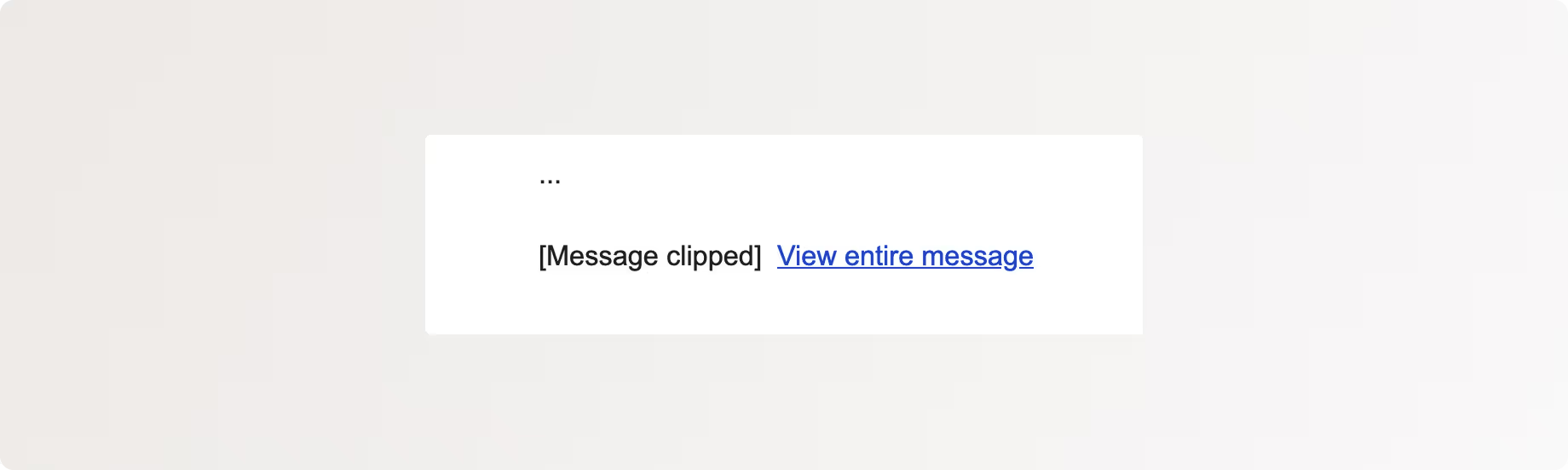
Email clipping happens when an inbox cuts off part of your email and replaces it with a “View entire message” link.
It is most common in Gmail.
It hurts clicks, conversions, and trust because the most important part of your email often lives at the bottom.
The good news: clipping is predictable, avoidable, and easy to fix once you know the rules.
This guide shows you exactly how to stop it.
Why Emails Get Clipped.
Emails are clipped when they exceed a size limit.
For Gmail, that limit is 102 KB of HTML.
Not the images.
Not the text length.
The raw HTML itself.
Once your email crosses that threshold, Gmail hides the rest.
This is why two emails that look the same visually can behave completely differently.
The Usual Causes of Email Clipping
Most teams assume clipping comes from writing too much.
That is rarely the problem.
Clipping is almost always caused by bloated code.
Here are the biggest offenders.
1. Too Much Inline CSS
Every inline style adds weight.
Repeated font declarations, margins, paddings, and colours stack fast.
Email platforms design tools can inject far more CSS than is needed, you might also accidentally be triggering it.
2. Overly Complex Layouts
Nested tables.
Multiple wrappers.
Empty spacer rows.
These add structure but also add size.
For beginners simple layouts outperform complex ones both in deliverability and performance.
3. Hidden or Duplicate Content
Hidden preheaders done incorrectly.
Mobile and desktop versions duplicated in the same file.
Conditional code left untrimmed.
You may not see it, but Gmail counts it.
4. Large Embedded Assets
Base64 encoded images are a silent killer.
They live inside the HTML instead of being hosted externally, which inflates file size instantly.
How to Stop Emails From Clipping
1. Keep your email lightweight.
Here is how to actually do that in practice, even if you are using drag and drop builders and have never touched HTML in your life.
1. Keep Your Email File Size Small (Without Thinking About Code)
You already know Gmail clips emails at around 102 KB.
What matters next is knowing what makes an email heavy.
The biggest contributor is usually images.
So, what to do about that?
Compress images before uploading them.
You do not need Photoshop for this.
Free online tools can shrink image size dramatically without visible quality loss.
Pngs : iloveimg.com or compresspng.com
Jpegs : iloveimg.com or compressjpeg.com
Typically this reduces sizes by 60-90%
2. Clean Up Extra Code Left Behind by Drag and Drop Editors.
Pretty much nobody writes CSS or HTML manually for emails.
They use drag and drop blocks.
The problem is not the blocks themselves.
The problem is what gets left behind.
Common mistakes we see all the time:
• Dragging a block in, then deleting it visually
• Copying and pasting text from tools like Figma, Notion, or Google Docs
• Rebuilding sections repeatedly while experimenting with layout
Visually, everything looks fine.
Behind the scenes, the code often stays.
What to do
In almost every email platform there is a way to:
• View source
• View HTML
• View plain text
• View code
You do not need to understand what you are looking at.
You just need to check it exists.
Once you find it:
1. Copy the entire block of code
2. Paste it into a chat bot (chatGPT, ClaudeAI etc)
3. Use a prompt like this:
"I am not familiar with HTML.
I am trying to make sure my email does not contain excess or unnecessary code that could cause clipping.
Please review the following full snippet of code, remove or flag anything that looks unnecessary, and return it to me as one complete piece of text that I can safely paste back into my email editor.
INSERT CODE HERE"
You do not need to optimise perfectly.
You just need to remove obvious bloat.
Doing this once can reduce email size dramatically.
3.Keep Your Layout Simple, Even If the Editor Allows More.
Email builders make it feel like you should use every layout option available.
Columns.
Stacks.
Dividers.
Nested sections.
Mobile specific rearrangements.
These are good tools.
But they are also easy to overuse.
If you are newer to email, complexity increases the chance of:
• Extra hidden code
• Duplicate sections
• Clipping
• Display issues across inboxes
What to do
Ask yourself a simple question for each section:
“Does this need to exist, or am I trying to force the layout?”
If your email needs:
A headline, An image, A paragraph, A button
That is enough.
Email platforms already handle spacing, alignment, and responsiveness well.
If you're not super familiar with email building, less structure performs better than clever structure.
4.Use Mobile Only Content Carefully.
Many platforms let you:
• Show content only on mobile
• Hide content on desktop
• Duplicate sections for different screen sizes
This is useful.
It is also one of the fastest ways to bloat an email.
Every hidden section still counts toward email size.
What to do
• Use mobile specific content sparingly
• Avoid duplicating entire sections just to adjust spacing or order for mobile
• Trust the platform’s default responsiveness
Email can feel restrictive.
That is normal.
The instinct to work around those limits often creates more problems than it solves.
For most emails, clarity beats cleverness.
A Simple Final Check Before You Send
There are two reliable ways to check whether your email is at risk of clipping.
1. Check the Email Size Inside Your Email Platform
Some email platforms will show you the size of the email before you send it.
Check if yours is one of them
As a reminder: Gmail clips emails at around 102 KB
Aim to stay under 90 KB if possible, to leave a safety buffer
2. Send Yourself a Test Email and Check Gmail
Even if the size looks fine, always test in a real inbox.
Here is the simplest check:
• Send a test email to a Gmail address
• Open the email
• Scroll to the bottom
If you see “View entire message”, the email is clipped.
If you do not see it, you are safe.
This takes less than a minute and catches issues that tools sometimes miss.
Final Thoughts
Email clipping is rarely caused by one singular issue, such as too many images.
It is caused by invisible leftovers from building and rebuilding.
it is caused by improper image compression.
Clean structure.
Simple layouts.Intentional images.
Get those right, and your emails will stay intact.
